In order to maintain the unity of code style in teamwork, we should format the code before submitting to Github.
Shortcut Key
Format the code in Visual Studio 2019 (Windows):
| Shortcut Key | Description |
|---|---|
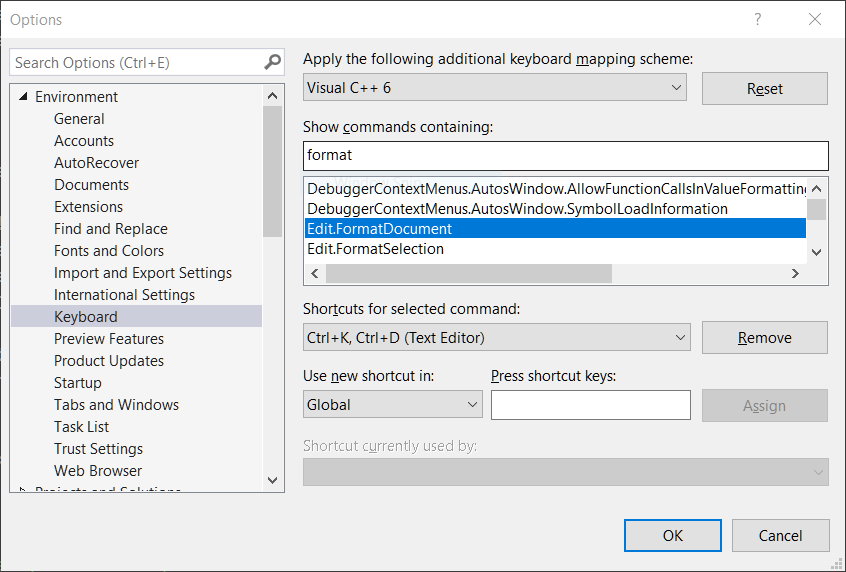
| Ctrl + K, and Ctrl + D | Format the whole document |
| Ctrl + K, and Ctrl + F | Format Selection only |
Set Code Style
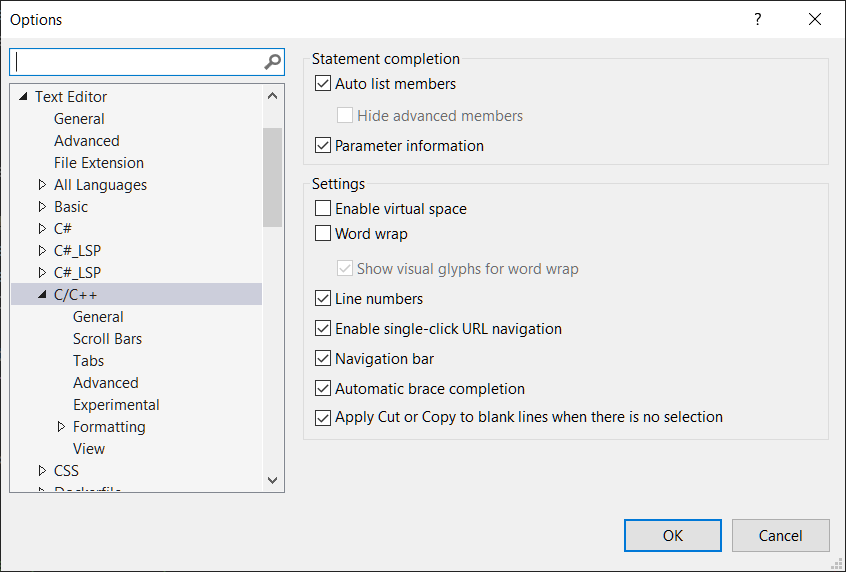
For set code style in Visual Studio 2019, from top menu: Tools -> Options -> Text Editor options, then click the language of your choice(I used C++).
Set Keyboard
For change the shortcut key in Visual Studio 2019, from top menu: Tools -> Options -> Environment -> Keyboard options.
Extensions
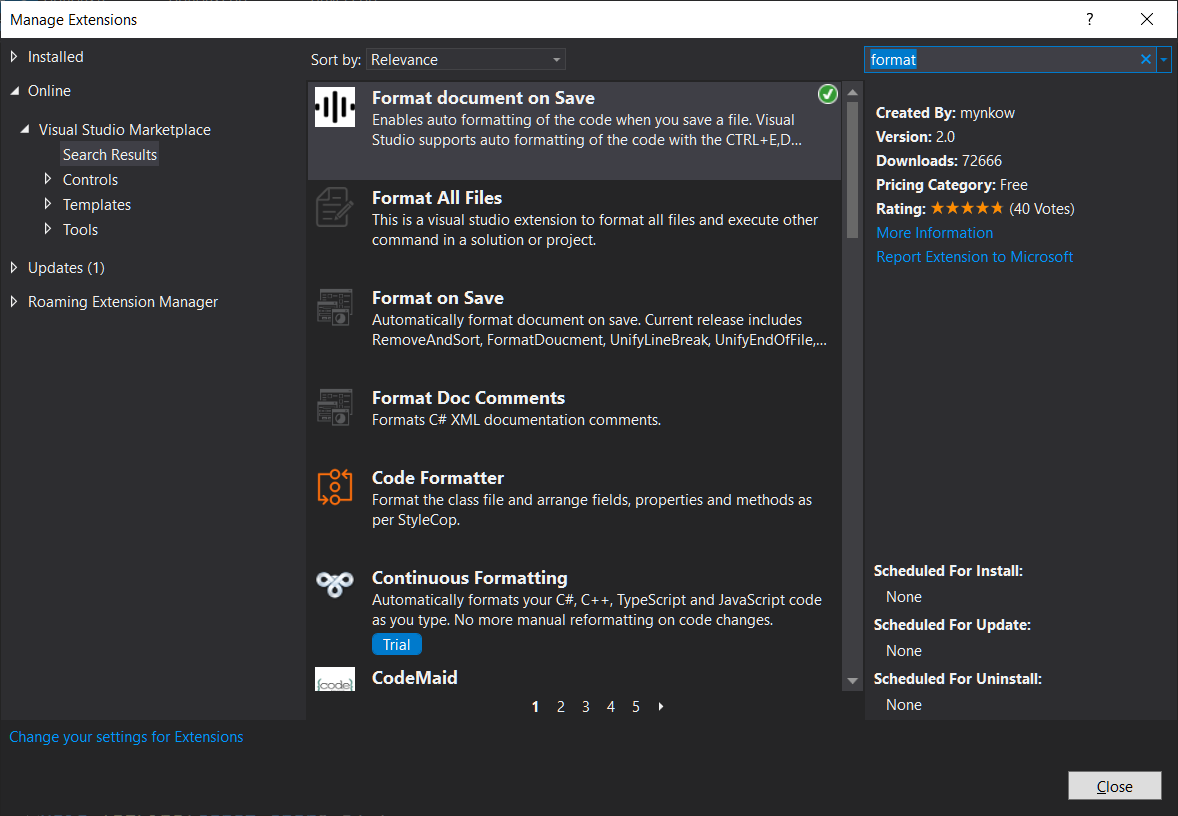
Of course, you can also use an extension to automatically format the code when it is saved, from top menu: Extensions -> Manage Extensions, then search format in the upper right corner and install Format document on Save.